

The short answer
Setup is the same for RFEM 6, RSTAB 9, and RSECTION. This guide shows it using RFEM 6 as the example. For RSTAB 9 or RSECTION, simply open that program instead of RFEM. Sign in to CALC, install and start the Dlubal Connector on the Windows computer running RFEM 6, and follow the connection and pairing prompts. Allow local network access for CALC if your browser requests it. The Dlubal API key is created and managed automatically. RFEM must be installed locally and running with an available license. Open the cube icon below the chat input, now labeled Dlubal Connector. Turn on Use in this chat if it is off. If RFEM is not running, click Start RFEM when offered or start it in Windows. Check Connected in the RFEM row, not just the overall status.
On this page
What you need
- RFEM 6 must be installed locally and running on the same Windows computer as the Dlubal Connector.
- A valid, available RFEM 6 license. RFEM access does not work without a local RFEM installation or an available RFEM license. A CALC plan or API key does not replace this license.
- A signed-in CALC account. The Dlubal API key is created and managed automatically; you do not need to create, enter, or check it. You do not need a separate Dlubal API subscription.
Find the Dlubal Connector menu
Click the cube icon below the chat input. The menu is now called Dlubal Connector. Its header shows the Connector version while it is reachable. Below Use in this chat, you see the overall status and the RFEM row with its version, API port, and connection status. Check Connected in the RFEM row. An update link appears when available. Connection details contains technical information and Save support report. Open connection settings opens Settings → AI assistant.
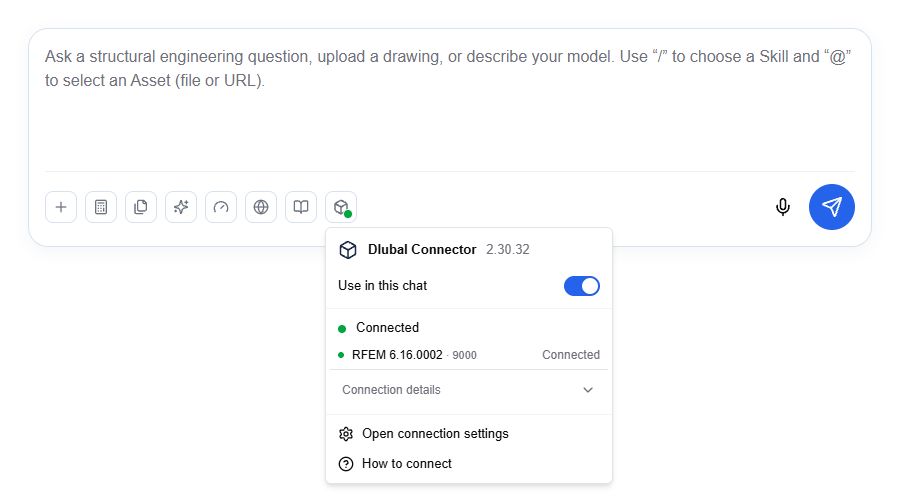
Initial setup: connect CALC and RFEM
Start here if the connection has not been set up yet. You do not need to pair a working connection again.
Install and start the Connector
Open the cube icon below the chat input. If the Connector is missing, use the offered download and run the installer on the Windows computer with RFEM 6. Installing and updating the Connector requires administrator rights on that computer. If you do not have them, ask your IT department to install it. Running the Connector does not require administrator rights. Start the Connector. If it is already installed but stopped, use the offered start action.
Allow access and pair with your CALC account
Follow the offered connection action. Allow local network access for CALC if the browser requests it. When pairing is requested, confirm the running Connector’s Windows dialog. A working pairing does not need to be repeated.
Start RFEM 6
Start RFEM 6 directly in Windows or click Start RFEM when offered in CALC. The Connector must be reachable and paired, and RFEM must be installed locally. Complete startup and license dialogs in RFEM and make sure a valid license is available. Open an existing model if you want to work with it. Wait for any initial setup to finish.
Enable chat access and check RFEM
Turn on Use in this chat if it is off. Status details and connection actions are hidden while it is off. Wait for Connected in the RFEM row. The overall status can also reflect another available Dlubal program and does not by itself confirm RFEM access.
Video: connect CALC to RFEM 6
The video explains setup, waiting for checks, connection status, updates, repair, and support. English with captions.
Read the video transcript
RFEM access requires RFEM 6 installed locally on the Windows computer with the Connector. You need a valid, available RFEM license. Access does not work without the installation or an available license. The Connector must be running and paired with your CALC account. The Dlubal API key is created and managed automatically. You do not need to create, enter, or check it. This example shows the current CALC chat input and its toolbar in English. Click the cube icon to open Dlubal Connector. Its header shows the Connector version; the RFEM row shows the program version, API port, and status. In this example, access is enabled and RFEM is connected. Your versions and available actions may differ. Open the cube icon below the chat input. Enable RFEM access in this chat if it is off. The status details then become visible. If RFEM is not running, click Start RFEM in the RFEM menu when the button is offered. Alternatively, start RFEM directly in Windows. Respond to startup or license dialogs in RFEM. Then wait for Connected. Starting RFEM alone does not confirm working access. After installation or an update, the Connector prepares the connection. This can take several minutes on slower computers. Keep RFEM and the Connector open. Do not start more repairs while setup is still running. Later checks are usually faster. Follow the displayed status and the next action offered. Now check that the RFEM status is Connected. A running Connector or confirmed pairing alone does not prove working RFEM access. The chat switch allows CALC to use RFEM in this chat. Approval before model changes, under Settings, AI assistant, separately controls additional confirmations. If the Connector is outdated, use the offered update and confirm any required Windows dialogs. If the check makes no visible progress for several minutes or an error appears, open the offered connection repair. Confirm Check and repair and wait for it to finish. Then check for Connected again. You do not need to remove a working pairing first. If repair fails or the same error returns, save the available support report. Contact Dlubal support with the error message and your RFEM and Connector versions. Mention whether the issue started after an update. You do not need to copy or share API keys or pairing tokens. Access enabled and RFEM connected? You can now work with RFEM in your CALC chat.
Enable RFEM access
Click the cube icon below the chat input to open Dlubal Connector. Turn on Use in this chat if it is off. When it is off, status details and connection actions are hidden, but connection settings and the FAQ remain available. Turning off chat access does not disconnect the Connector.

Check the RFEM row
Check Connected next to RFEM. A running Connector, a completed pairing, or a green overall status alone does not confirm RFEM access. The row also shows the detected RFEM version and API port while running. If it says Not running, start RFEM in Windows or use Start RFEM when offered. Complete startup or license dialogs and wait for the connection check.
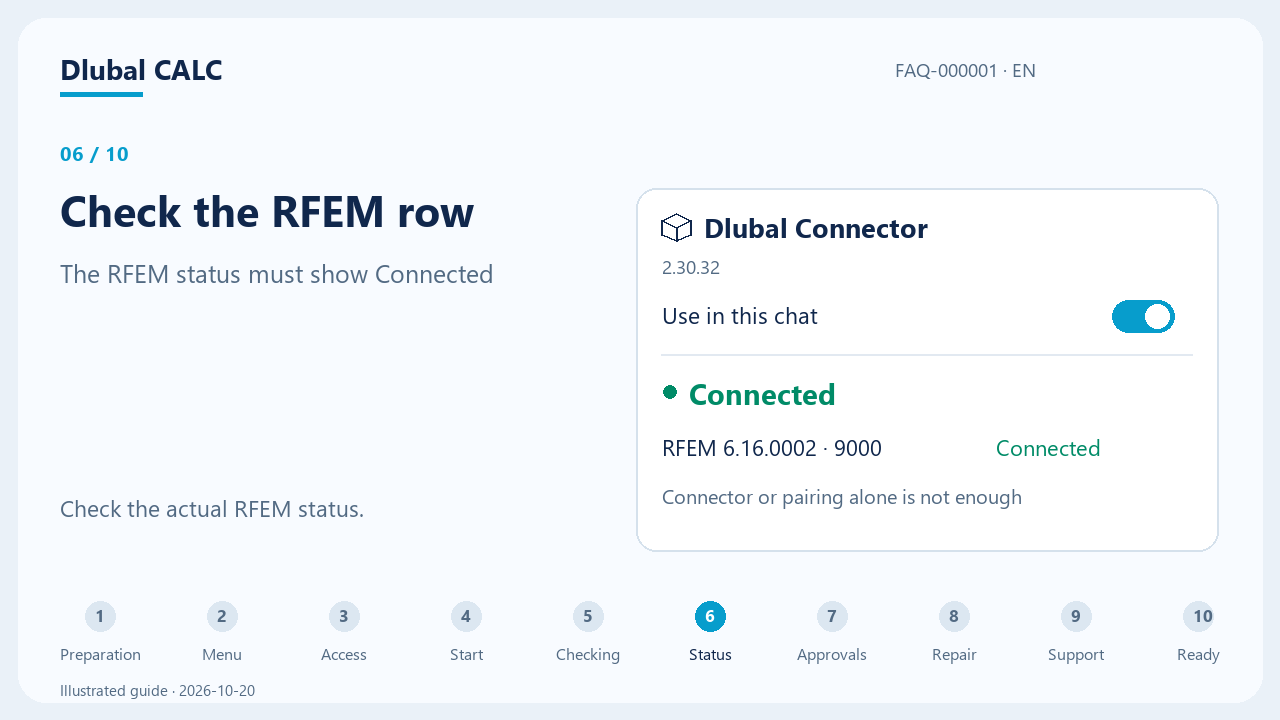
Check chat permissions
Use in this chat allows CALC to use RFEM in the current chat. Approval before model changes under Settings → AI assistant separately controls which model actions require confirmation. The chat switch does not replace these approvals.

Why does connecting to RFEM take time?
After installation or an update, the Connector prepares the connection and checks the required components. This can take several minutes on slower computers. Later checks are usually faster. Follow the displayed status and the next action offered.
Checking… / Setup in progress
Keep RFEM and the Connector open and allow the current process to finish. Respond to startup or license dialogs directly in RFEM. Do not repeatedly start repair while setup is still running.
Action required
Follow the notice in the RFEM menu: for example, update the Connector, start RFEM, or approve an offered repair. Then wait for the connection status to be checked again.
Connection failed or status unchanged
If the display stays unchanged for several minutes with no visible progress, or an error appears, use the offered connection repair. If the error recurs, save the available support report and contact Dlubal support.
If the connection does not work
Open the connection settings from the RFEM menu and check the reported reason. Choose the matching case below.
Check first: the most common causes
These questions rule out most connection problems:
- Is the latest version of the Dlubal Connector running? New versions are released often.
- Is RFEM 6 open on the same computer while you use CALC?
- Is the Dlubal API enabled in RFEM (Options → Program Options)?
- Is the RFEM port free, or is another program using it?
- Are you signed in to RFEM with the same email address as in CALC?
- Do your profile and the Dlubal Connector menu show Paired?
- Does Chrome allow CALC to access Apps on your device?
- Do antivirus software or firewalls block the Connector or its port?
If a point does not apply, you find the solution in the matching case below.
Connector missing or not found by CALC
If the Connector is not installed yet or has stopped, use the offered action to install or start it on the RFEM computer. If it is already running but CALC still shows Download Connector or Not paired, and clicking Pair Connector returns without a message, the browser permission is usually missing. Updating the Connector does not change this. In Chrome, click the site information icon left of the address bar and allow access there. The setting is called Apps on your device, or Local network access in older Chrome versions. If the entry is missing, open the site settings for calc.dlubal.com and set it to Allow there. Then reload CALC. Check the permission even when CALC shows no notice: if you never answered Chrome’s prompt, CALC cannot tell that the browser is blocking it.
Pairing missing
Use the pairing action in the RFEM menu and confirm the Windows dialog. An already authenticated cloud relay connection does not need additional local browser pairing.
RFEM rejects the API key
Usually RFEM and CALC are signed in with different Dlubal accounts, for example a personal account in CALC and a company account in RFEM. Check which email address you use in RFEM and in CALC. If they differ, sign in to one of the two programs with the other account, then click Restore connection to RFEM. CALC creates and manages the Dlubal API key automatically; you do not need to create, enter, or change a key. Contact Dlubal support if the problem persists.
The Dlubal API is not enabled in RFEM
CALC accesses RFEM through the Dlubal API. In RFEM, open the Options → Program Options menu. At the bottom of the Options tab, in the API Service & Webservice section, select the Dlubal API | gRPC check box, confirm with OK, and restart RFEM. Then check for Connected in the RFEM row in CALC.
Antivirus software or a firewall blocks the Connector
Antivirus software or company firewalls can block the Dlubal Connector or parts of its installation. A typical sign: the Connector is running, but the connection to RFEM keeps failing, and neither a restart nor the guided repair helps. Ask your IT department to check whether the antivirus software or firewall blocks the Dlubal Connector, its port, or files of the installation, and to allow them. Then reinstall the current versions of RFEM 6 and the Dlubal Connector.
CALC reports a blocked port
Usually the Connector finds a free port automatically, and you do not need to do anything. If CALC still reports a blocked port or MCP server not responding, or the connection turns green briefly and then hangs again, another program, such as security software, is probably using the RFEM port. Check this in RFEM under Options → Program Options: on the Options tab, in the API Service & Webservice section, click the Dlubal API | gRPC row. On the right you see gRPC server initial port and Used gRPC server port. If the used port is 9001 instead of 9000 even though no other Dlubal program is running, and stays so after a restart, the default port is taken. Then set gRPC server initial port to a free port, for example 9003, and confirm with OK. Close RFEM, quit the Dlubal Connector using its icon in the Windows notification area beside the clock, and restart the computer. Then start RFEM first and CALC after it. Do the same in RSECTION if port 9002 is taken, for example with port 9004. Alternatively, your IT department can move the other program to a different port. If you are unsure, send the support report to support. They ask for the port check if needed; see below.
RFEM 6 is not installed
Install RFEM 6 on the Windows computer with the Connector. When the installation is missing, the RFEM menu offers a trial link instead of Start RFEM. You need a valid, available RFEM license to use it.
No RFEM license available
Check your license sign-in and license availability directly in RFEM. Contact your license administrator or Dlubal support if a license is missing or occupied. CALC and the Connector do not provide an RFEM license.
RFEM closed or blocked by a dialog
Click Start RFEM in the RFEM menu when offered, or start RFEM directly on the Connector computer. Respond to startup and license dialogs in RFEM. Wait for Connected; a successful launch alone does not confirm RFEM access.
What does Checking… mean?
CALC is checking the connection. After installation or an update, the Connector may still be preparing the required components. Keep RFEM open and allow the current process to finish. If there is no visible progress for several minutes, follow the connection repair guidance.
The Connector is outdated
Use the update offered in the RFEM menu or guided repair. Confirm any required Windows dialogs and wait for installation and the subsequent connection check to finish. You do not need to remove a working pairing first.
What does Setup deferred mean during an update?
Setup has deferred the update before replacing installed files. It is not continuing to wait in the background. The dialog explains the reason and the next step. If RFEM work is still active, wait for it to finish and then run Setup again. If a safe state cannot be confirmed, follow the inspection or support guidance. Do not force processes to stop.
Setup asks me to close an older Connector
First check in RFEM and CALC that no calculation or other RFEM work is still running. From Setup 2.30.17, Setup itself asks whether to close a Connector older than version 2.30; confirm only after that check. Otherwise quit Dlubal Connector using its icon in the Windows notification area beside the clock; closing the browser window is not enough. Run Setup again. If the Connector will not quit or the update is still blocked, save the available support report and contact Dlubal support.
An earlier RFEM operation has an unknown outcome
The connection has no reliable completion record for this operation. Inspect the model in RFEM for partial changes and save what you keep. Then close RFEM completely and start it again: the record is released once the RFEM session that ran the operation has ended. If the message remains, update the Connector to version 2.30.17 or later; its Setup releases such records itself. If that does not help either, save the available support report and contact Dlubal support with the exact message. Do not delete operation journals or repeat the original action without checking its outcome.
The connection or MCP setup failed
Open the offered guided connection repair and confirm Check and repair. It checks the required connection components and sets them up if needed. Then look for Connected. Do not start several repair attempts at once or force processes to stop during ongoing operations. If repair still fails after a restart, antivirus software or a firewall may have blocked parts of the installation; see the case above.
Connected but unavailable in the chat
Check the RFEM access switch for the current chat. Connection and chat access are separate settings.
When should I contact support?
If none of the cases above helps, repair fails, or the same error returns, save a support report: open the cube icon below the chat input, expand Connection details, and click Save support report. Send the report to Dlubal support ([email protected]) together with the exact error message, the RFEM and Connector versions, and whether the issue started after an update. If support cannot find the cause from the support report, they ask you to collect additional diagnostic data. The next section explains how. You do not need to copy or share API keys or pairing tokens.
When support asks: collect diagnostic data
You only need these commands if Dlubal support asks you to run them. Together with the support report, they show support the cause of the connection problem in most cases. The commands only read information and do not change any settings. Open Windows PowerShell: click Start, type PowerShell, and open the app. Copy the command, paste it into the PowerShell window with a right click, and press Enter.
1. Collect the Connector logs when support asks for them: in the command, replace 6.16 with your RFEM version. You find it in the RFEM title bar, for example Dlubal RFEM | 6.16.0004. The command saves the file dlubal-connect-logs.zip on your desktop. Send this ZIP file and a screenshot of the output in the PowerShell window to support.
$zip = "$env:USERPROFILE\Desktop\dlubal-connect-logs.zip"
Get-ChildItem $env:TEMP -Filter 'dlubal-connect-*.log' | Sort-Object LastWriteTime -Descending | Select-Object -First 4 | Compress-Archive -DestinationPath $zip -Force
"Logs saved to $zip"
"--- RFEM Python pip:"; & "C:\Program Files\Dlubal\RFEM 6.16\bin\python.exe" -m pip --version
"--- last helper check:"; Get-ChildItem "$env:LOCALAPPDATA\Dlubal\Connector\mcp-runtimes" -Recurse -Filter last-verification.json -EA SilentlyContinue | ForEach-Object { $_.FullName; Get-Content $_.FullName }
2. Check the ports only when support asks for it: this is needed when support suspects that other software is using the RFEM port. Start RFEM first, then run this command. It shows which programs use the RFEM and Connector ports. Send a screenshot of the output to support.
$ports = 8084,9000,9001,9002
"--- who listens"; Get-NetTCPConnection -LocalPort $ports -State Listen -EA SilentlyContinue | % { $p = Get-Process -Id $_.OwningProcess -EA SilentlyContinue; [pscustomobject]@{Port=$_.LocalPort; PID=$_.OwningProcess; Name=$p.ProcessName; Started=$p.StartTime; Window=$p.MainWindowTitle} } | ft -AutoSize
"--- Dlubal processes"; Get-Process RFEM6,RSECTION,RSTAB9,python,DlubalConnect -EA SilentlyContinue | select Id,ProcessName,StartTime,CPU,MainWindowTitle | ft -AutoSize
"--- what the MCP server is connected to"
$mcp = (Get-NetTCPConnection -LocalPort 8084 -State Listen -EA SilentlyContinue | select -First 1).OwningProcess
if ($mcp) { Get-NetTCPConnection -OwningProcess $mcp -State Established -EA SilentlyContinue | ? { $_.RemotePort -ge 9000 -and $_.RemotePort -le 9009 } | % { $peer = (Get-NetTCPConnection -LocalPort $_.RemotePort -RemotePort $_.LocalPort -State Established -EA SilentlyContinue).OwningProcess; [pscustomobject]@{RemotePort=$_.RemotePort; PeerPID=$peer; PeerName=(Get-Process -Id $peer -EA SilentlyContinue).ProcessName} } | ft -AutoSize }
curl.exe -s -m 5 --noproxy "*" -o NUL -w "8084 auth-check: HTTP %{http_code} in %{time_total}s`n" http://127.0.0.1:8084/auth-checkRFEM connected and access enabled?
You can now use RFEM in your CALC chat.
Continue in CALC →